

Kiosk
These devices have become increasingly popular due to their ability to streamline the ordering and payment process, reduce lines, and offer a convenient experience for customers.
A malfunctioning kiosk can result in delays in the ordering or payment process, which impacts the customer experience and can lead to frustration.
Below are common problems and the steps to follow to solve them.
Static drain
It consists of leaving the kiosk completely isolated from electrostatic elements and ensuring that it releases any possible problem that prevents it from functioning, that is, it is a process that is used to eliminate the accumulation of static electrical charge in the device. To achieve this, the following steps must be followed:
1. Turn off the kiosk.
2. Inside the kiosk, locate the mini computer and disconnect the cables connected to it, mainly the one that goes to the screen, the electrical current and the network.
3. Wait a couple of minutes offline.
4. Reconnect and test operation.
NOTE: Kiosk static drain is only possible when the kiosk can be opened.
Kiosk does not turn on
1. Perform static drainage. If drainage is not possible, look for the power button and press it for a couple of seconds; On some models the power button is located at the top left of the space where the printer is placed.
2. Checking the power supply:
– Ensure that the kiosk is connected to a properly working power outlet.
– Check if there is any switch that may be preventing the power supply.
– Check that there is electricity in the area where the kiosk is connected.
3. Checking cables and connections: Check the kiosk’s power cables to ensure they are not damaged or loose.
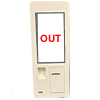
Kiosk displays out of service message
This message has several possible causes, among which we can mention the following:
1. The kiosk has been intentionally put out of service.
Access the kiosk manager and put it online.
– The kiosk does not communicate with the master POS.
– Ensure that the master POS is in correct operation and connected to the network.
– Verify that the network cable of the kiosk and the POS are well connected.
2. If there is more than one kiosk and they have slave-master system established, the out-of-order kiosk cannot communicate with the master kiosk.
Ensure that the master kiosk is in proper working order and connected to the network.
3. The API or Brigde is not responding and/or is not executing its integration function.
Locate the mini computer, press the power button to proceed with restarting the device.
Kiosk turns on, but does not work
1. Try restarting the kiosk by pressing the power button for a few seconds to turn it off completely and then turn it back on.
– In some kiosk models the power button is located in the upper left part of the space where the printer is placed.
– In the types of kiosks that can be opened, the mini computer inside the kiosk is restarted.
2. Checking cables and connections: Check the kiosk’s video and network cables to make sure they are not damaged or loose.
3. Check that the kiosk screen is on.
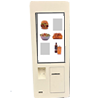
Kiosk does not show all products
The products that the kiosks show are all those that exist in the master POS, therefore, it is possible to carry out two procedures to resolve the incident:
1. Verify that the product or products that are not displayed in kiosks are on the POS; If they are not on the device, check through the master POS if there are pending updates and update.
2. Once the existence of the products at the POS has been verified, proceed to synchronize the kiosks with the POS.
3. Restart the kiosks.
NOTE: There are cases in which some products or promotions do not apply to all restaurants, therefore, it is necessary to verify if the products that are not on POS and therefore do not appear in the kiosks, really apply to the restaurant that is carrying out the procedure.
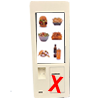
Kiosk printer not printing
The procedure to follow with a kiosk printer is very similar to that followed with other printers; Consider that the only difference is that this printer is anchored to the kiosk furniture. Below are the basic steps to follow:
1. Drain static from the printer.
2. Check if the printer is turned on, has paper and that it is not displaying error messages.
3. Open the printer cover and carefully remove any jammed paper.
4. Make sure the paper is correctly adjusted and in the correct position.
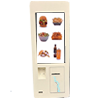
Broken printer cover or furniture
1. Carefully examine the breakage of the printer cover or the kiosk furniture as the case may be.
2. Take photos of the lid or furniture of the kiosk where the breakage or damage is visible.
3. Take photos of the kiosk where you can see it from its base to the top of it.
4. Create an incident in the ticket system explaining the assessment of the damage, and attach the photos, so that onsite support has the necessary elements to repair/replace the device.
NOTE: Printer cover we refer to the cover attached to the kiosk, which hides the printer and allows the paper to exit.