
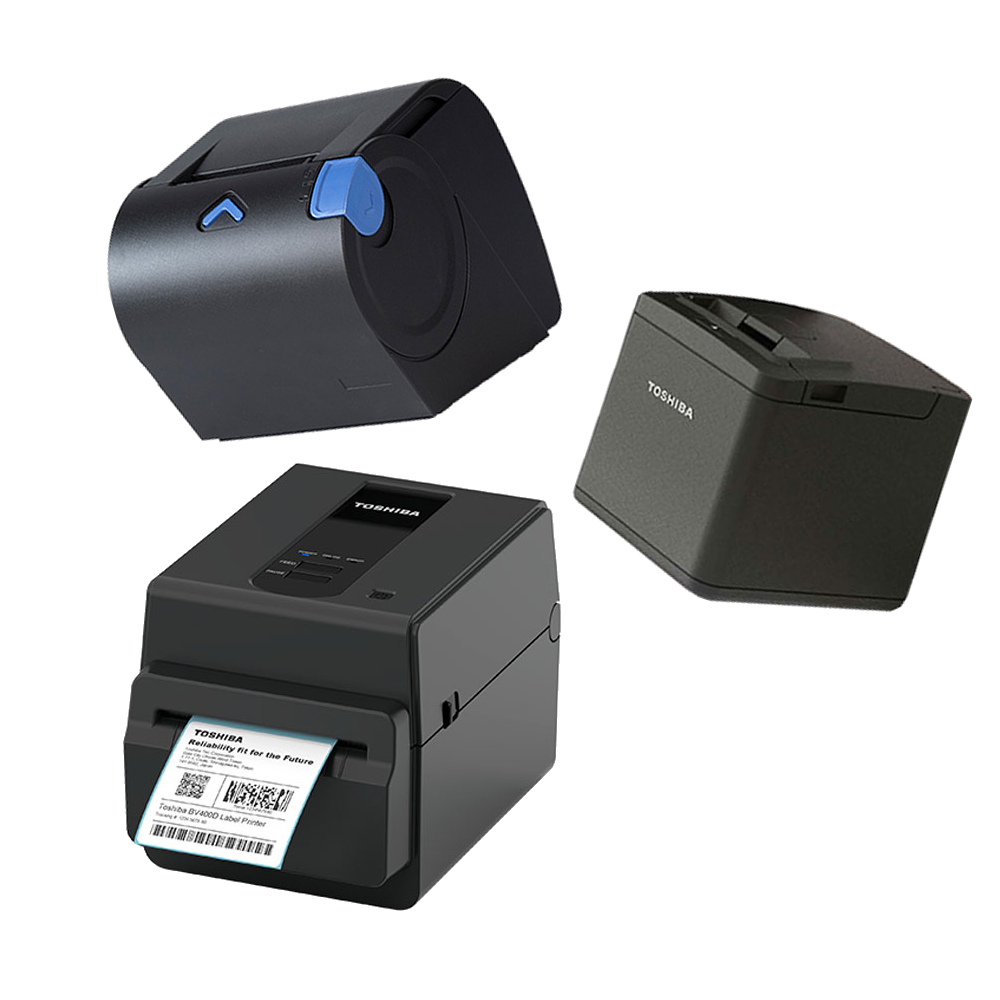
Printers and POS drawers
The correct operation of printers is vitally important to ensure efficient operation and customer satisfaction.
Malfunctioning printers in the kitchen can result in delays in food preparation, mix-ups in orders, and ultimately an unsatisfactory experience for diners.
Below are common problems and the steps to follow to solve them.
Static drain
Most problems with printers are solved by draining static, which is why it is recommended to do this frequently when faced with these problems.
It consists of leaving the printer completely isolated from electrostatic elements and ensuring that the printer releases any possible problem that prevents it from printing, that is, it is a process that is used to eliminate the accumulation of static electrical charge in the printer. To achieve this, the following steps must be followed:
1. Disconnect the printer from the power and/or network.
2. Wait a couple of minutes disconnected.
3. Press the “Feed” key for 10 seconds.
4. Reconnect and test operation.

Printer does not turn on
1. Visual inspection: Perform a visual inspection of the power cables to look for damage or visible shorts.
2. Power check: Check that the printer is connected to a working outlet, for example, it is easy to try a mobile charger.
3. Unplug the printer from the power for a few minutes, then plug it back in and turn it on.
4. Make sure the power cord is securely plugged into both the printer and the power outlet.
5. Test a different outlet: Try plugging the printer into a different outlet to rule out a problem with the original outlet.
6. Replacing the power cord: If you suspect that the power cord is damaged, try replacing it with another compatible cable.

Printer keeps getting stuck
1. Turning off and disconnecting: Turn off the printer and disconnect it from the power to avoid injury during the troubleshooting process.
2. Removing jammed paper: Open the printer cover and carefully remove any jammed paper.
3. Roller Inspection: Examine the feed rollers for dirt, blockages or damage. Wipe the rollers with a clean, damp cloth if necessary.
4. Paper Adjustment: Make sure the paper is correctly adjusted and in the correct position, incorrectly adjusted paper can cause jams.
5. Use paper in good condition. Wrinkled, folded, or damaged paper is more likely to cause jams.
6. Try different paper: If the problem persists, try using a different type of paper to see if the jam is due to the quality or thickness of the paper.
The bill/coin drawer does not open
Generally the problem that the drawer does not open is due to a poor connection between the printer and the drawer. After verifying that the printer is working correctly, the following steps must be followed:
1. Make sure the drawer is not locked.
2. Physically check the bill and coin drawer for any visible damage, jams, or loose parts.
3. Disconnect the cable that goes from the printer to the drawer. Make sure all cables and connections are properly connected.
4. Restart the printer, and if possible also the main computer where the printer is connected.
5. Replacing the data cable: If you suspect that the cable from the printer to the drawer is damaged, try replacing it with another compatible cable.

Printer turns on, but does not print
1. Perform static drainage.
2. Check if the printer is turned on, has paper and ink (if applicable), and that it does not display error messages.
3. Disconnect the data cable or internet cable at both ends and reconnect.
4. Connect the network cable to another socket that you are sure is working correctly.
5. Try another network cable, USB or the one the printer uses to communicate with the main computer.
6. Replacing the network, USB or whatever cable you use: If you suspect that a cable is damaged, try replacing it with another compatible cable; for example, use that of another printer that is working correctly.
7. Restart the computer where the printer is connected.

Printer prints blank
When a thermal printer prints white, the problem is likely related to the settings, print heads, or thermal paper.
1. Perform static drainage.
2. Check thermal paper: Make sure that the thermal paper is correctly loaded in the printer and is compatible with the printer model used.
3. Clean the print heads: Use a cotton swab lightly moistened with isopropyl alcohol to gently clean the print heads and remove any debris that may be blocking the image output.
If the problem persists after performing these steps, it may be necessary to request technical assistance to perform a more detailed evaluation and resolve the problem on-site.
Printer or drawer has a broken cable
1. Damage assessment:
to. Carefully examine the broken printer cable or drawer to determine the nature and extent of the damage.
b. Take photos of the printer or drawer where you can see the make/model and another where you can see the damage.
2. Replacement with another: If it is an essential piece of equipment, try replacing it with the cable from another piece of equipment that has less use or is less essential.
3. Restart the main computer and printer. Perform a test sale to determine if the replacement has worked.
4. Create an incident in the ticket system explaining the assessment of the damage, and attach the photos, so that onsite support has the necessary elements to repair/replace the cable.

Printer or drawer is broken
1. Damage assessment:
to. Carefully examine the printer or drawer to determine the nature and extent of the damage.
b. Identify if they are broken parts, jams, damaged electronic components, etc.
c. Take photos of the printer or drawer where you can see the make/model and another where you can see the damage.
2. Replacement with another: If it is an essential piece of equipment, try replacing it with the printer/drawer of another piece of equipment that has less use or is less essential.
3. Restart the main computer and printer. Perform a test sale to determine if the replacement has worked.
4. Create an incident in the ticket system explaining the assessment of the damage, and attach the photos, so that onsite support has the necessary elements to repair/replace the device.