

Pinpad
Correct functioning of pinpads is crucial for any business that accepts card payments. Pinpads allow merchants to process transactions quickly and securely, which is critical to customer satisfaction and revenue streams.
A malfunctioning pinpad can cause transaction delays, which in turn can negatively impact customer experience and business operational efficiency.
Below are common problems and the steps to follow to solve them.
Static drain
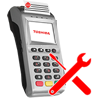
It consists of leaving the dataphone completely isolated from electrostatic elements and ensuring that it releases any possible problem that prevents it from working, that is, it is a process that is used to eliminate the accumulation of static electrical charge in the device. To achieve this, the following steps must be followed:
1. Disconnect the USB cable from the dataphone until it turns off.
2. Wait a couple of minutes offline.
3. Reconnect and test operation.
NOTE: Static draining in the dataphone is only possible when the kiosk can be opened.

Pinpad does not turn on
1.Disconnect the pinpad USB cable from the main computer.
2. Wait a couple of minutes offline.
3. Reconnect and test if it turns on.
4. Restart the pinpad by pressing the yellow and green buttons at the same time until the screen turns on.
NOTE: Carefully check the cable that is connected to the equipment, and in addition to ensuring that the cable is not broken, also check that it is well connected.
Pinpad turns on, but doesn't work
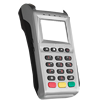
1. Perform static drainage.
2. Restart the computer where the pinpad is connected.
3. Restart the pinpad by pressing the yellow and green button at the same time until the screen restarts.
4. Perform a functional test.
PinPad error or server connection error
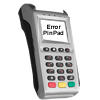
1. Perform static drainage.
2. Restart the device where the pinpad is connected.
3. Restart the pinpad by pressing the yellow and green button at the same time until the screen restarts.
4. Restart the computer where the pinpad is connected.
5. Check that the error has disappeared.
6. Perform a functional test.
Tamper error
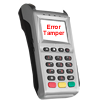
Tamper is a safety switch. This is an added protective measure to prevent sabotage of your system. In cases where the dataphone screen shows the “Tamper” error, the only thing to do is the following:
1. Take a photo of the top of the pinpad where you can see the error message on the screen.
2. Take a photo above and see it complete to identify the brand.
3. Take a photo of the bottom or where there is a white sticker with the device data such as: series, model, etc.
4. Create an incident in the ticket support system so that the onsite technician can replace said dataphone. Attach the photos taken from the pinpad.