
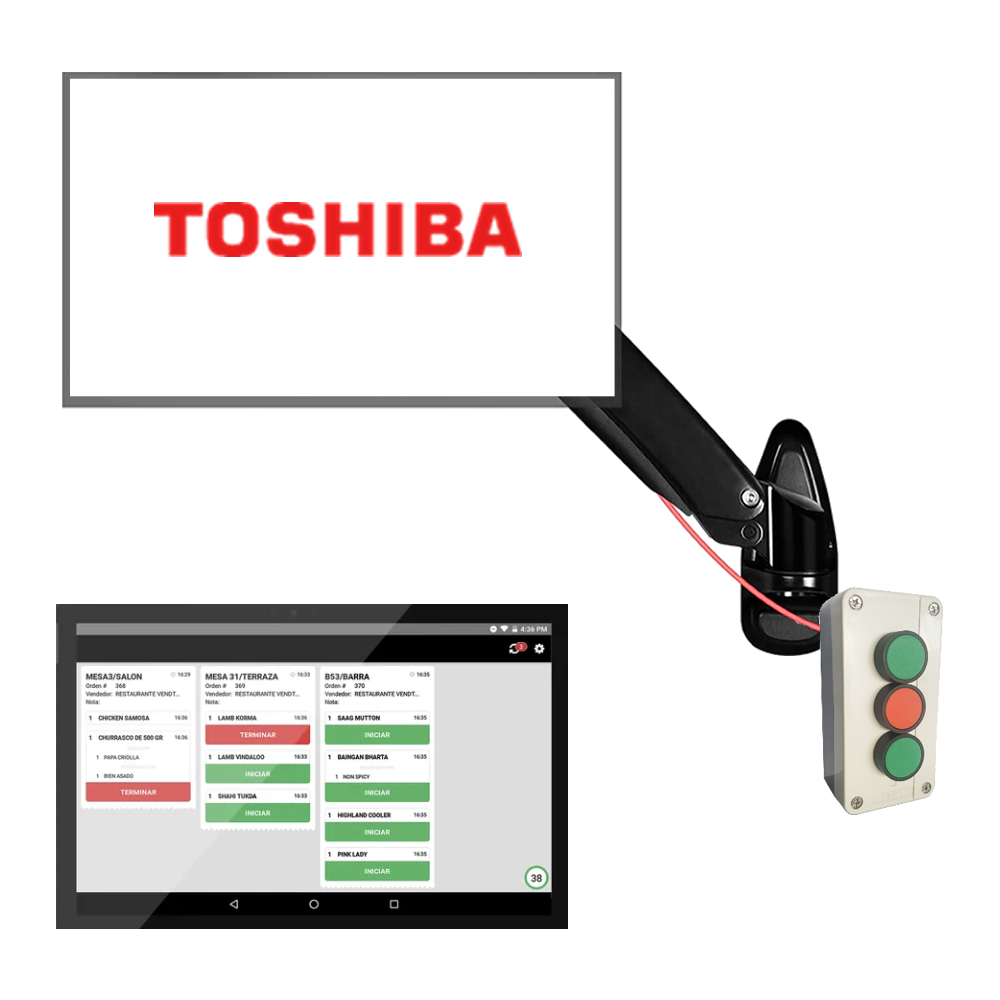
KDS and bump bar
The KDS, also known as kitchen monitors, is a set of devices made up of a mini computer and a screen, that is, although it is known as a kitchen monitor, it does not mean that it is just a monitor.
The correct operation of the KDS (Kitchen Display System) is essential for the efficiency and accuracy of a restaurant operation. KDSs help coordinate and organize customer orders, allowing the kitchen to prepare and serve menus at the right time. Incorrect KDS operation can result in kitchen delays, order mix-ups, and ultimately an unsatisfactory diner experience.
Below are common problems and the steps to follow to solve them.
Static drain
It consists of leaving the KDS completely isolated from electrostatic elements and ensuring that it releases any possible problem that prevents it from functioning, that is, it is a process that is used to eliminate the accumulation of static electrical charge in the device. To achieve this, the following steps must be followed:
1. Turn off the KDS or minicomputer which is usually located behind the screen or monitor.
2. Locate and disconnect the cables connected to the KDS, mainly the power cable, the video cable that goes to the monitor and the network cable.
3. Wait a couple of minutes offline.
4. Reconnect and test operation.
KDS or monitor does not turn on
1. Visual inspection: Perform a visual inspection of the power cables for visible damage or short circuits.
2. Power Check: Check that the KDS and monitor are connected to a working power outlet.
3. Disconnect from the power for a few minutes and then reconnect and turn on.
4. Make sure the power cord is securely plugged into both the KDS and monitor, and the power outlet.
5. Replacing the power cord: If you suspect that the power cord is damaged, please try to replace it with another compatible cable.
KDS or monitor turns on, but does not work
1. Perform static drainage.
2. Check if the KDS is turned on, and that it does not display error messages.
3. Disconnect the data cable or internet cable at both ends and reconnect.
4. Try another network cable from another device that works correctly.
5. Replacing the network cable: If you suspect a cable is damaged, try replacing it with another compatible cable, preferably from another device that is working properly.
6. Restart the master POS equipment.
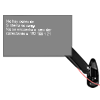
KDS shows black screen with white letters
1. Perform static drainage.
2. Disconnect the data cable or internet cable at both ends and reconnect.
3. Try another network cable from another device that works correctly.
4. Replacing the network cable: If you suspect a cable is damaged, try replacing it with another compatible cable, preferably from another device that is working properly
5. Restart the master POS equipment.
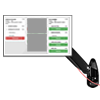
KDS does not show orders
1. Perform static drainage.
2. Verify that there is no printer addressing.
3. Verify the kitchen model or order output configuration applied.
4. Restart the master POS equipment.
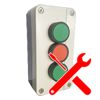
Static bump bar drain
1. Disconnect the USB cable that is connected to the KDS.
2. Wait a couple of minutes offline.
3. Reconnect and test operation.
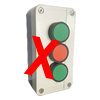
Bump bar not working
1. Perform static drainage.
2. Wait a couple of minutes offline.
3. Check if the KDS is turned on, and that it does not display error messages.
4. Reconnect and test operation.
5. Restart the KDS where the bump bar is connected.
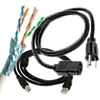
KDS has a broken cable
1. Damage assessment:
– Carefully examine the broken device cable to determine the nature and extent of the damage.
– Take photos of the device where you can see the make/model and another where you can see the damage.
2. Replacement with another: If it is an essential piece of equipment, try replacing it with the cable from another piece of equipment that has less use or is less essential.
3. Restart your computer. Perform a test sale to determine if the replacement has worked.
4. Create an incident in the ticket system explaining the assessment of the damage, and attach the photos, so that onsite support has the necessary elements to repair/replace the cable.
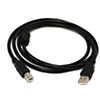
Bump bar has broken cable
1. Damage assessment:
– Carefully examine the keypad to determine the nature and extent of the damage.
– Take photos of the bump bar and another photo where you can see the damage, for example if it is the cable.
2. Replacement with another: If it is an essential piece of equipment, try replacing it with the bump bar of another piece of equipment that has less use or is less essential.
3. Restart the KDS where the bump bar is connected. Perform a test sale to determine if the replacement has worked.
4. Create an incident in the ticket system explaining the damage assessment, and attach the photos, so that onsite support has the necessary elements to repair/replace the device.